
Run payroll from approved timesheets
Payroll in Korrit starts from the timesheets your team already fills in. You approve the hours once, and those same hours count toward project budgets, invoices and pay. This guide covers the one-time setup, what to do each pay period, and where payroll shows up in your reports.
What Korrit does and what Gusto does
Korrit works with Gusto, a payroll provider, to pay your team. Korrit keeps the hours, the approvals, each person’s compensation rates, your pay schedule, and the reports on what your team costs per project.
Gusto handles the parts that move money and deal with tax agencies: direct deposits to your team and payroll taxes. Your company’s payroll account, including its tax registrations and the bank account payroll is paid from, lives in Gusto. Korrit never files payroll taxes and never acts as the employer.
One-time setup
Onboarding is free on every plan. If you’d like help with setup, book a call.
Connect Gusto
Connecting Gusto needs the Principal role.
- Go to Settings → Connectors.
- Find the Gusto card in the Payroll section.
- Click Connect.
- Sign in to Gusto and approve the connection to your company.
- Back in Korrit, check that the card says Connected and shows your company’s name.
If the card later shows Reconnect needed, click Reconnect and approve again. Disconnect on the same card ends the connection.
Set your pay schedule
During signup, the Set your preferences step asks how often you run payroll: Weekly, Every two weeks, Twice a month or Monthly. It also has an Overtime pay setting, off by default. Pick the schedule that matches your Gusto account.
Add each person’s compensation
- Go to Team → Members and open a team member.
- In the Compensation section, click Add rate.
- Enter the Hourly cost rate, which is what this person costs the firm per worked hour.
- Enter the Hourly bill rate if their time is billed to clients. Leave it blank if it isn’t.
- Set Effective from to the date the rate starts. Leave Effective to blank while it’s the current rate.
- Click Add rate.
A raise is a new rate with its own start date. The old rate stays on record, so past hours keep the rate that applied when they were worked.
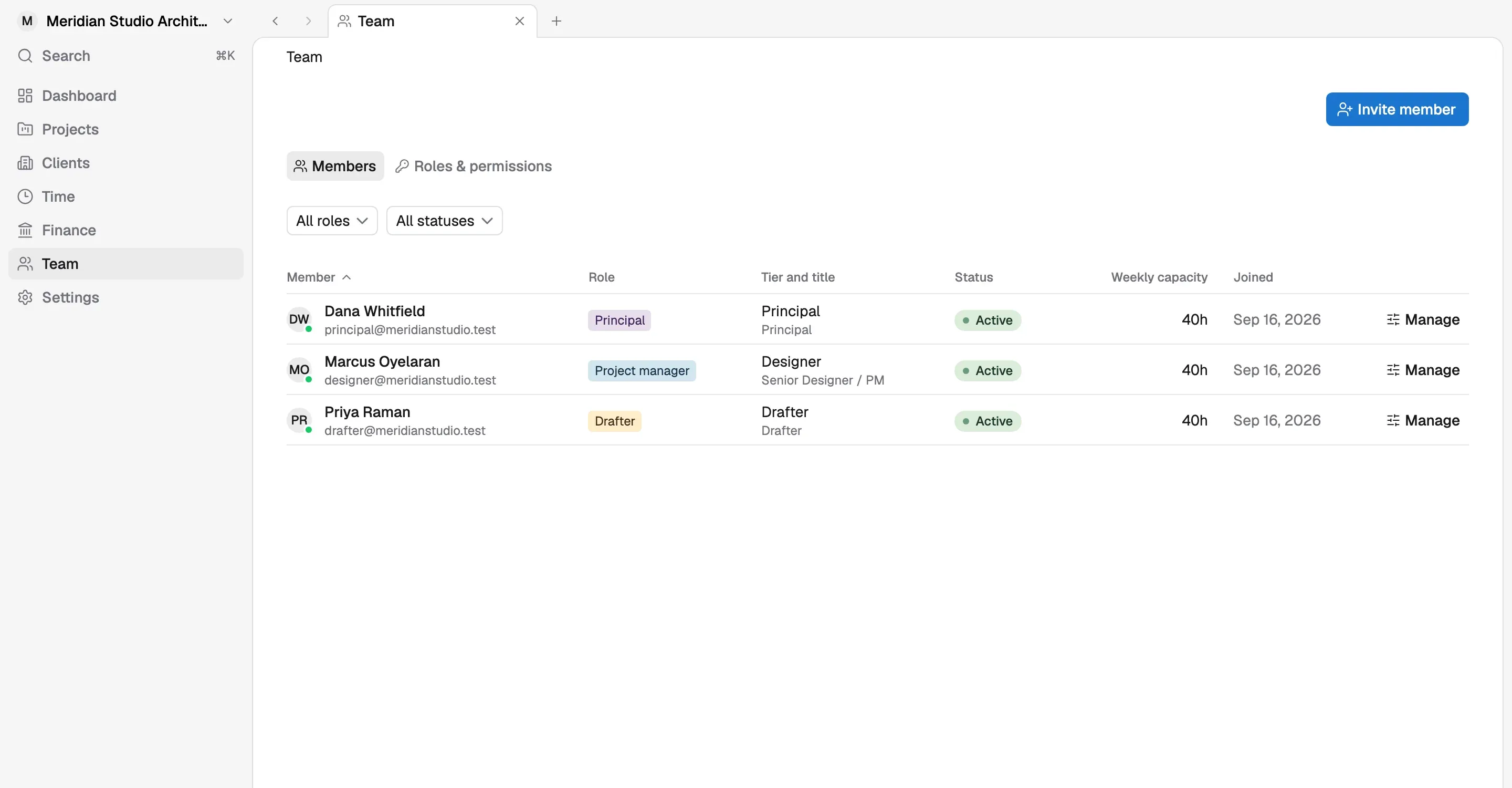
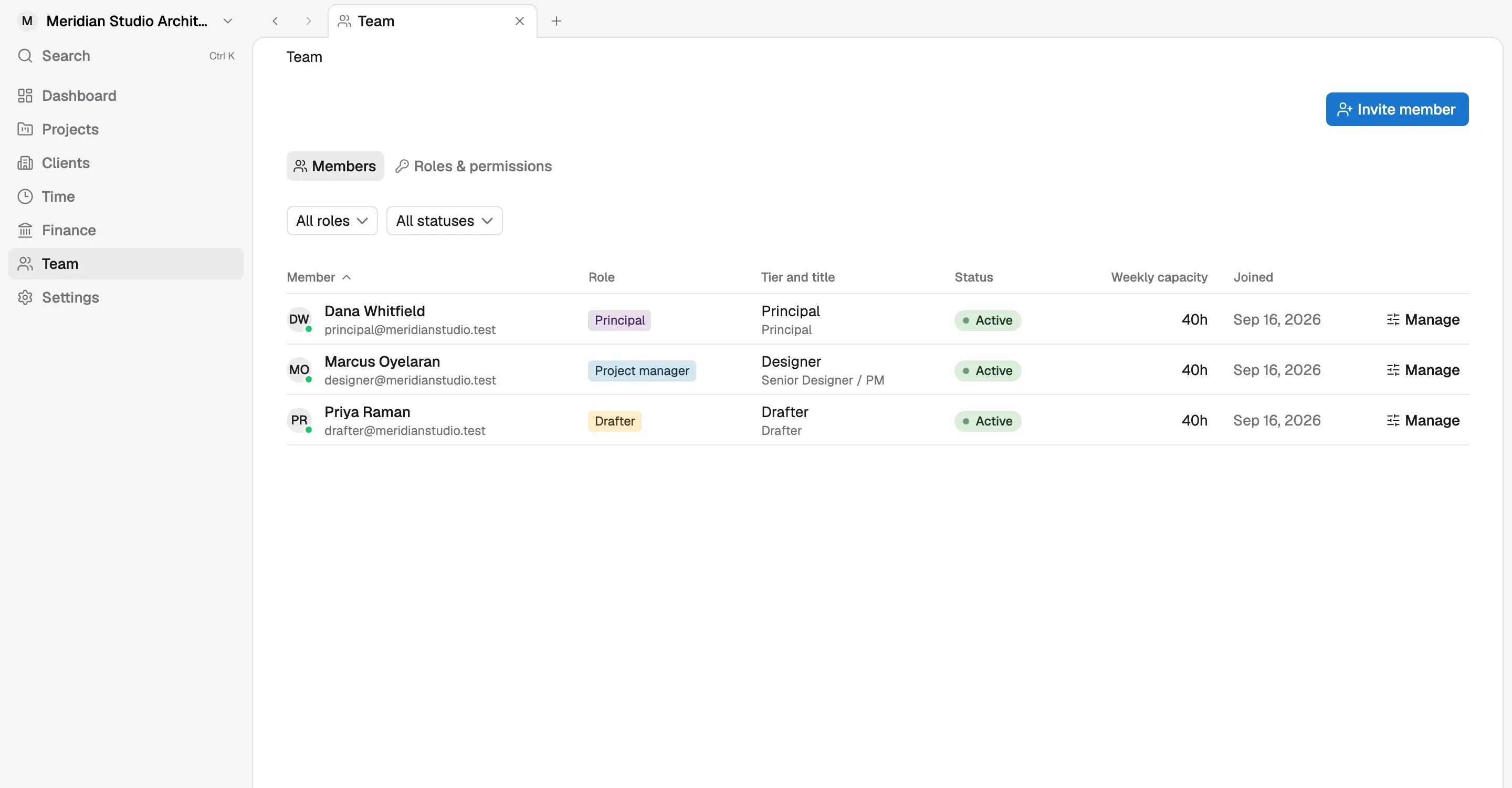
Only roles with the compensation permission can see or add rates. A project manager doesn’t see what someone earns just because they work on the same project. Security and data ownership at Korrit explains how pay data is protected.
Salaried and hourly staff
Hourly staff are paid for their approved hours. If Overtime pay is on, overtime comes from those same hours.
Salaried staff are paid their salary each period. They still log time, because their approved hours are what count as cost on each project and phase.
Each pay period
1. Get every timesheet approved
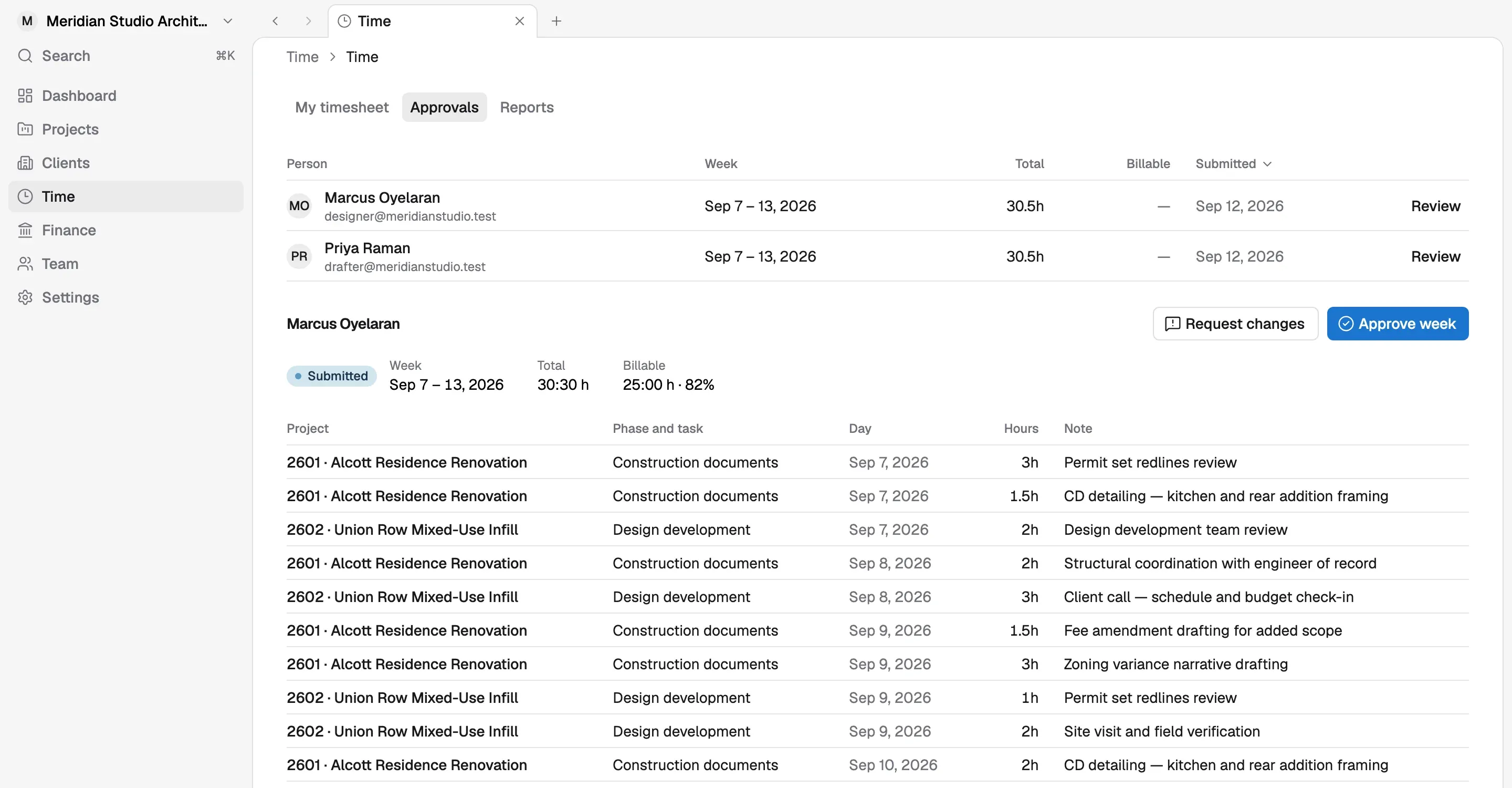
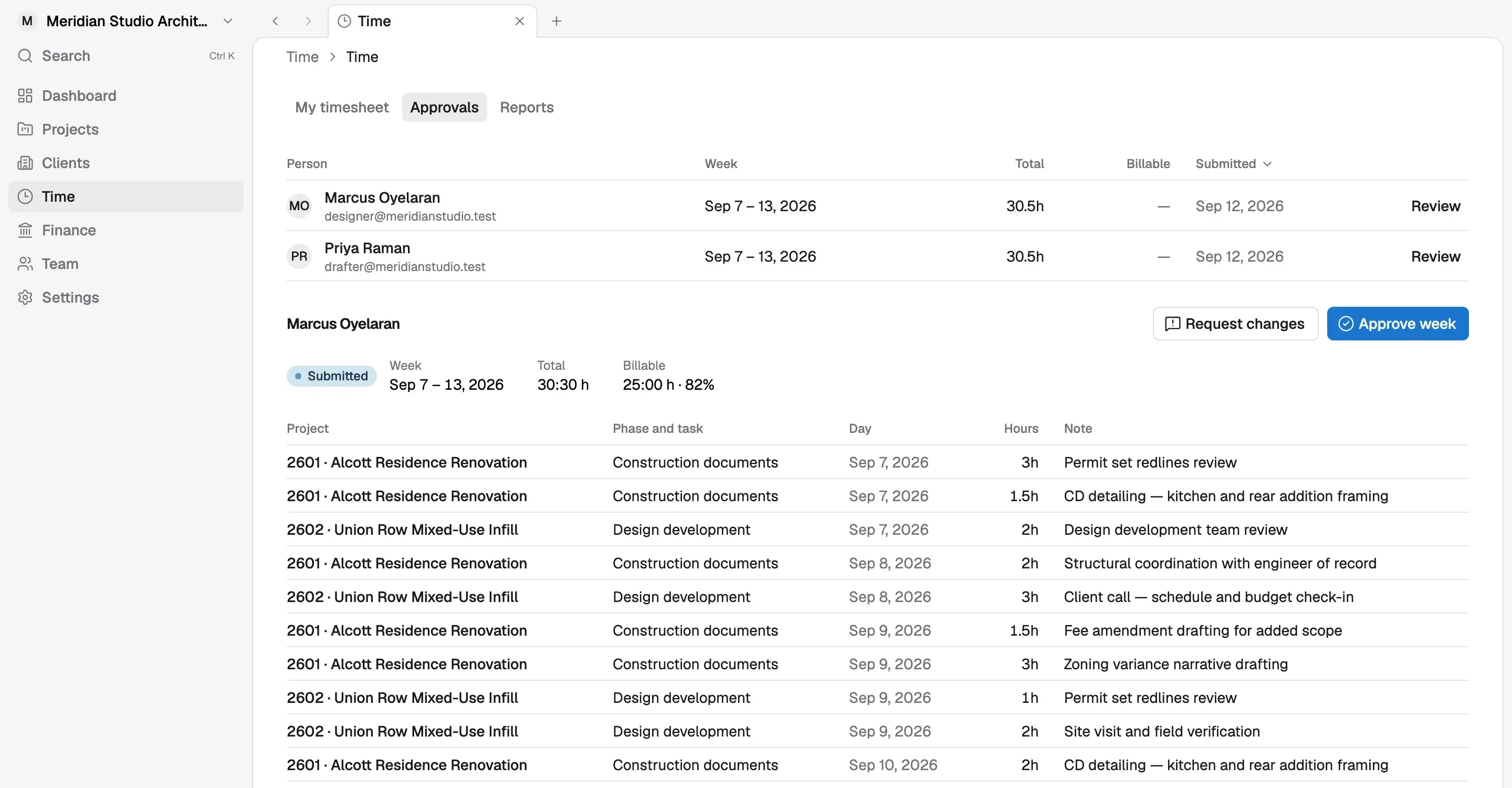
Only approved hours reach payroll. Go to Time → Approvals to see every period:
- Ready for review means the person marked their time complete.
- In progress means they haven’t finished yet.
- Sent back means an approver asked for a fix.
Open each period that’s ready, check the hours, and click the approve button. It names the period, such as Approve October, or Approve the week of Oct 5 for weekly periods. If something looks wrong, click Send back and say what should change. Once a period is marked complete, its hours are locked until an approver sends it back. Log time and approve timesheets covers this in detail.
2. Review the run
Open payroll in Korrit for the pay period. You’ll see each person’s approved hours alongside their pay. Check that everyone you expect is there and that the hours look right.
3. Submit it
Submit the run when it looks right. Gusto pays your team by direct deposit and handles the payroll taxes for that run.
What happens with unapproved time
Hours that haven’t been approved are not paid. If someone’s period is still In progress or Sent back, those hours aren’t part of the run, and an hourly employee would be paid short. Check Time → Approvals before you submit, nudge the people still missing, and approve their time first.
Past runs and pay stubs
Gusto keeps the record of each payroll it processes, including pay stubs and tax forms. Your team gets their pay stubs from Gusto.
How payroll feeds your reports
Every logged hour carries a cost: the person’s Hourly cost rate on the day it was worked. Principals can see this under Analytics → Profit, which shows revenue against payroll and project expenses, by project and by person. Overhead such as rent isn’t included.
Where to go next
If your team is new to timesheets, start with Log time and approve timesheets so the hours are in good shape before your first pay run. To move to Enterprise or get help with payroll setup, book a call or email [email protected].
Covered in Korrit
Related
Log time and approve timesheets
Log hours by project and phase, mark your month or week complete, and approve or send back your team's time before it reaches invoices.
Security and data ownership at Korrit
Where Korrit stores your firm's data, who on your team can see it, which outside services handle parts of it, and how to get a full copy.
Moving to Korrit from Monograph, Deltek or BQE
What comes across when you switch to Korrit, what to export from your current tool, and how to plan a cutover so billing and timesheets never stop.