
Set up a project with phases and fees
A project in Korrit holds its phases, team, fee and billing setup on one record. Set it up once and your team logs time against the right phase, and invoices bill from the same numbers.
Principals and project managers can create projects. The Billing tab, where fee components and bill rates live, can be changed by principals and finance.
Before you start
- Add the client under Clients, so you can pick it on the project.
- Check your firm’s default phases in Settings → Firm, under Default phases. Every new project starts with them.
Choose your firm’s default phases
Korrit comes with three phase templates:
- Architecture: SD / DD / CD / CA: Pre-design, Schematic design, Design development, Construction documents, Bidding and permitting, and Construction administration.
- Interiors: Programming, Concept design, Design development, Documentation, Procurement and Installation.
- Simple 3-phase: Design, Documentation and Delivery.
Each phase has a length in weeks. To make the plan your own, rename a phase, change its weeks, move it up or down, remove it, or click Add phase. Then click Save phases.
On your firm’s first project, the New project form asks for this choice itself. Changing the default later only affects new projects.
Create the project
- Go to Projects and click New project.
- Enter the Project code, for example 26-014, and the Project name.
- Choose the Client.
- Choose the Billing method: Fixed fee, Hourly, Percent of construction, Phased or Retainer.
- Enter the Fee total, the contract fee for the whole project.
- Choose the Project manager.
- Set the Start date and End date.
- Click Create project.
The project opens with your default phases already on it. If you gave it a start date, the phases run back to back from that date, each starting the day after the last one ends.
Split the fee across phases
The Overview tab shows the project’s figures and its phase list. For each phase:
- Open the phase’s row actions and choose Edit.
- Enter the Fee allocation, the part of the fee this phase carries.
- Enter the Hours budget, the hours you plan to spend. Leave it empty for no budget.
- Adjust the Start date, End date, Phase status and Percent complete if needed.
- Check the before-and-after summary, then click Confirm phase update.
Use Move earlier and Move later in the same row menu to reorder phases. You can also rename a phase or add one that only this project needs.
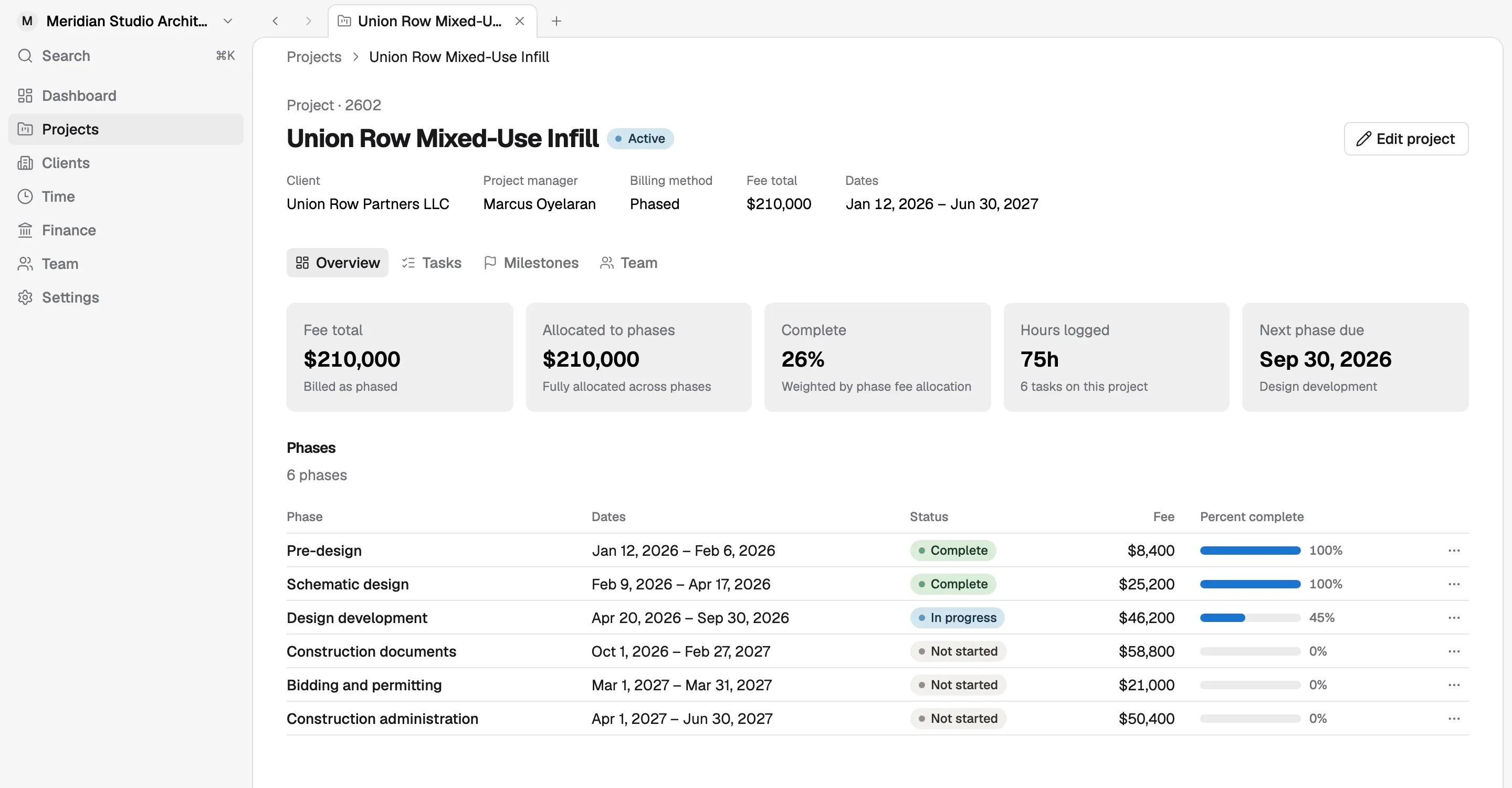
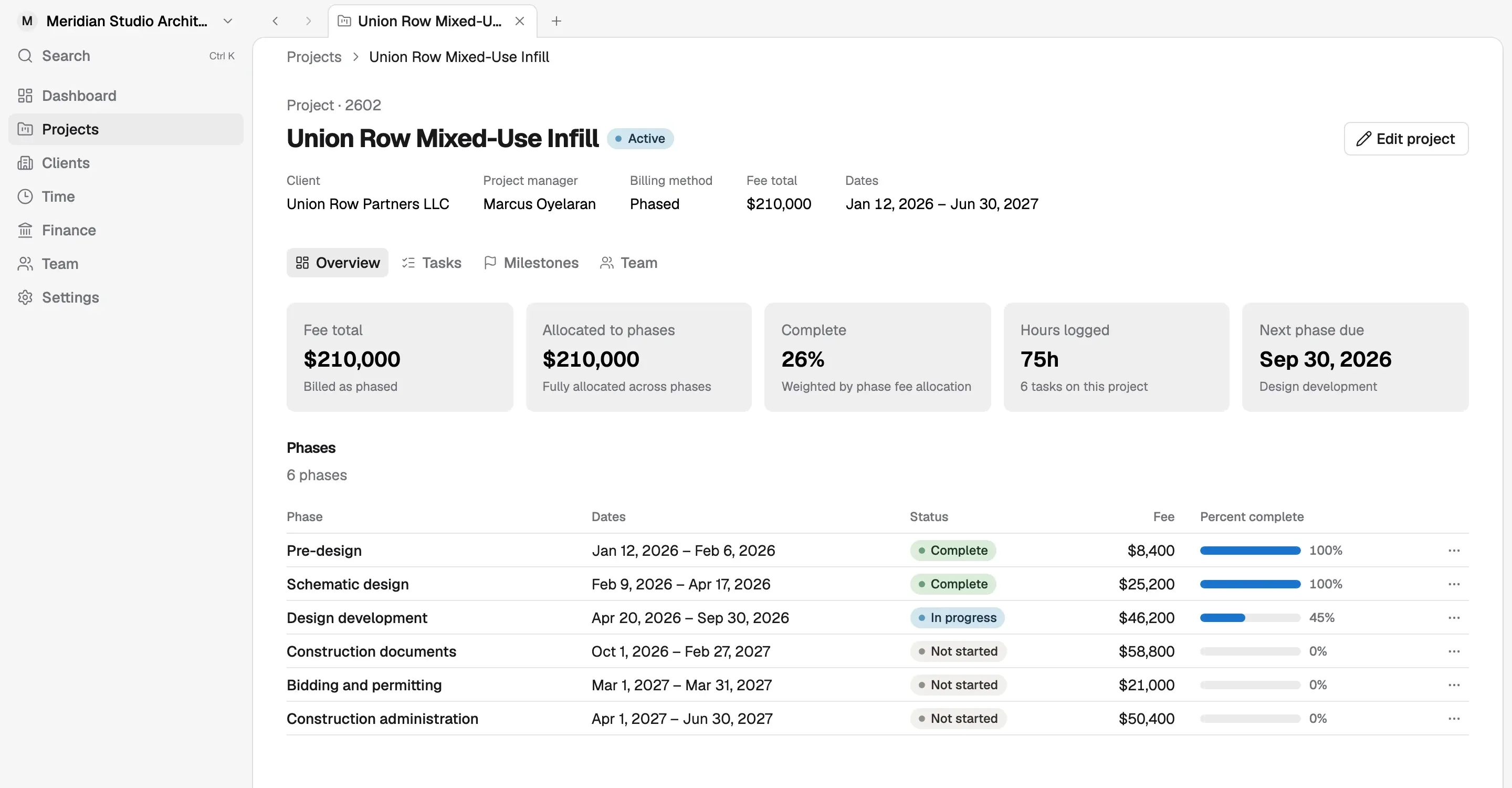
Above the list, Allocated to phases shows how much of the fee total you’ve split, for example “$12,000 not yet allocated”. Complete is weighted by each phase’s fee. The Timeline tab shows each phase’s hours budget next to the hours logged, so you see a phase running over while there’s still time to act.
Add the team
- Open the Team tab and click Add to project.
- Choose the Person.
- Choose their Role on project: Project manager, Designer, Drafter, Reviewer or Consultant.
- Optionally enter their Allocation as a percent of their week.
- Click Add to project.
Being on the project lets people see it and puts it on their timesheet.
Set up fee components
Fee components decide how each phase bills. One phase can mix methods, such as a fixed fee for the drawing set and hourly time for extra coordination.
- Open the Billing tab and click Add fee component.
- Choose the Phase, or Additional service (outside the phases) for work added after the agreement.
- Choose the Billing method: Fixed fee, Hourly or Hourly, not to exceed.
- Enter a Name, such as “Schematic design services”.
- Enter the Fixed fee, or the Not-to-exceed cap for capped hourly work.
- If a phase has more than one hourly component, turn on Default for this phase’s time for the one time should bill to.
- Click Add fee component.
An additional service can also carry an Amendment name and Amendment date, such as Amendment 1.
Set bill rates
Each person’s standard rate is the Hourly bill rate in their Compensation section, under Team → Members. When they log time, Korrit saves the rate in effect on that day with the entry.
To bill a different rate on this project:
- On the Billing tab, find Bill rates and click Set a rate.
- Under Rate for, choose One person or Everyone of a tier (Principal, Designer or Drafter).
- Enter the Hourly rate and click Save rate.
A rate for a person wins over a rate for their tier. Without either, time bills at the rate saved on the entry. Invoices already created keep their rates.
What’s next
Your team can now log hours against these phases. Log time and approve timesheets covers logging and approval. Once the time is approved, turn approved time into an invoice.
Covered in Korrit
Related
Log time and approve timesheets
Log hours by project and phase, mark your month or week complete, and approve or send back your team's time before it reaches invoices.
Turn approved time into an invoice
Draft an invoice from a project's fixed fees, approved hours and costs, review the lines, then finalize it, email it and record the payment.
Moving to Korrit from Monograph, Deltek or BQE
What comes across when you switch to Korrit, what to export from your current tool, and how to plan a cutover so billing and timesheets never stop.