
Log time and approve timesheets
Your team logs hours against project phases on a weekly grid. At the end of each period, each person marks their time complete, and an approver checks it and approves it. Approved hours are the ones Korrit bills on invoices and counts for payroll. The first half of this guide is for everyone who logs time. The second half is for approvers.
How timesheet periods work
Your firm picks the period in Settings → Firm under Timesheet period: Monthly, the default, or Weekly. It sets how often people mark their time complete.
Hours are saved as you enter them, so there’s nothing to submit day by day. The period’s status shows at the top of your timesheet:
- In progress: you’re still logging. Every past day can be edited.
- Complete: you’ve marked it complete. Its days are locked while your approver reviews them.
- Approved: the hours are final.
- Sent back: your approver asked for a change. The days are unlocked again.
Log your time
- Go to Time. The My timesheet tab opens on the current week.
- Find the project’s row. Projects you’re assigned to are already there. For any other project, choose it from + Add another project… under the grid.
- Click the day you worked.
- Select a phase.
- Enter the hours as 1.5, 1:30 or 90m.
- Add a comment under What did you work on?
- If you split the day across phases, click Add another phase and repeat.
- Click Save.
The cell shows the new total right away. Use the arrows to move between weeks, and This week to come back. You can’t log time on days that haven’t happened yet.
On the Studio and Enterprise plans, your firm can require a comment on every time entry. Write enough that someone reading it months later knows what the hours covered.
To tidy your grid, hide a project row you’re done with and confirm with Hide project. This only changes your own view in that browser. The project stays assigned to you and its logged time doesn’t change.
Mark your period complete
When the month (or week) is done:
- Click Mark October complete at the top of your timesheet. It says Mark week complete if your firm uses weekly periods.
- Check the review. It shows every day of the period with its hours, plus your Total, Billable hours and Days logged.
- Click Mark October complete to confirm, or Keep editing to go back.
This sends your hours to your approver and locks every day of the period until they approve it or send it back. If you mark the period complete before it ends, the remaining days lock too, and the review tells you which ones.
If you forget, a reminder appears on your timesheet once the new period starts, with a Review button that opens last period.
If your time is sent back
A red banner says the period was sent back, who sent it and their note, such as “Move Tuesday to the Harbor project”. Your hours are unlocked. Fix them on the grid, then mark the period complete again.
If you spot a mistake after marking a period complete, ask your approver to send it back.
Approve your team’s time
Principals can approve anyone’s time. Project managers can approve time for the people on their projects. Finance can see the queue but can’t approve. Other roles don’t see the Approvals tab.
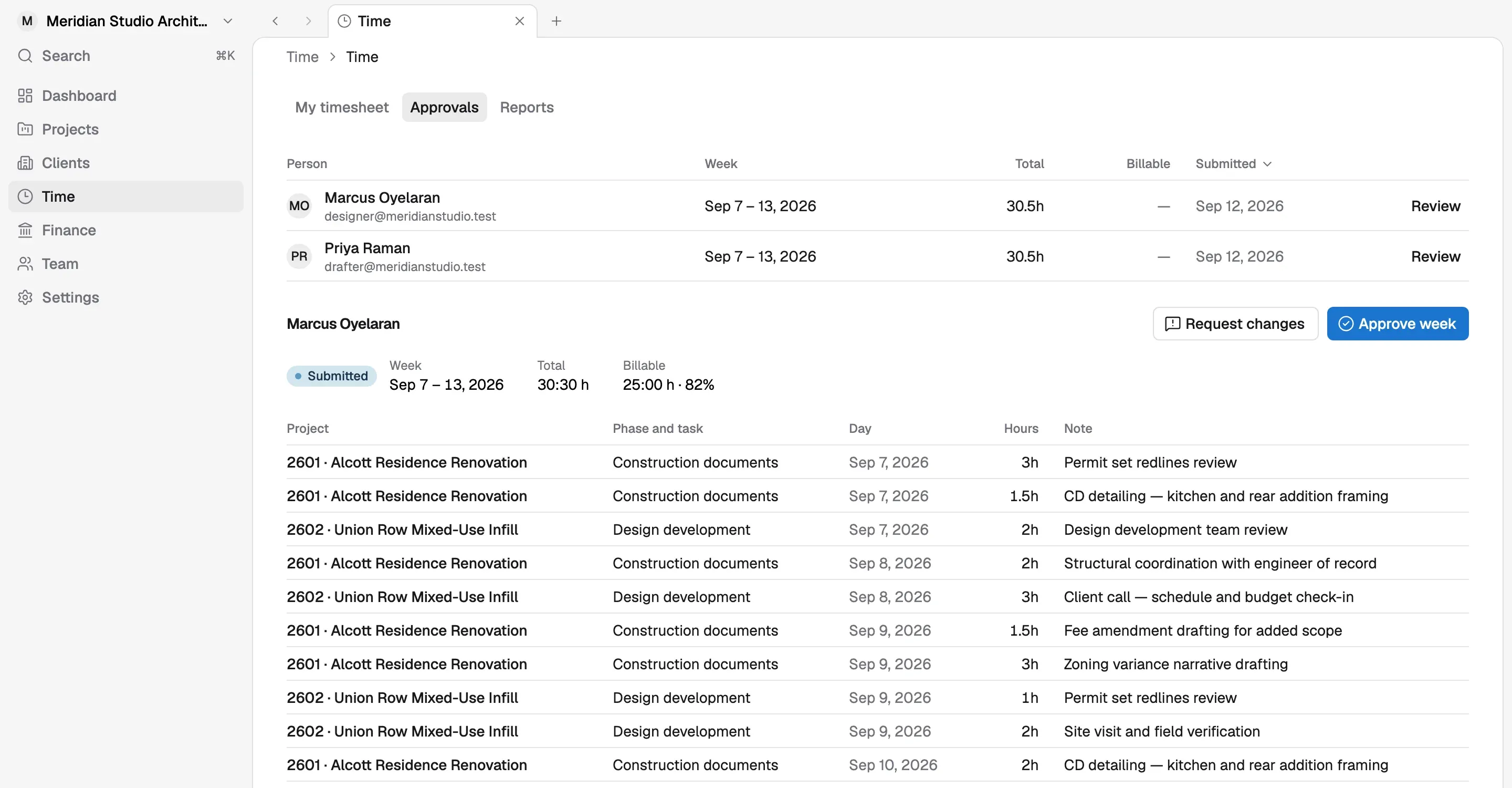
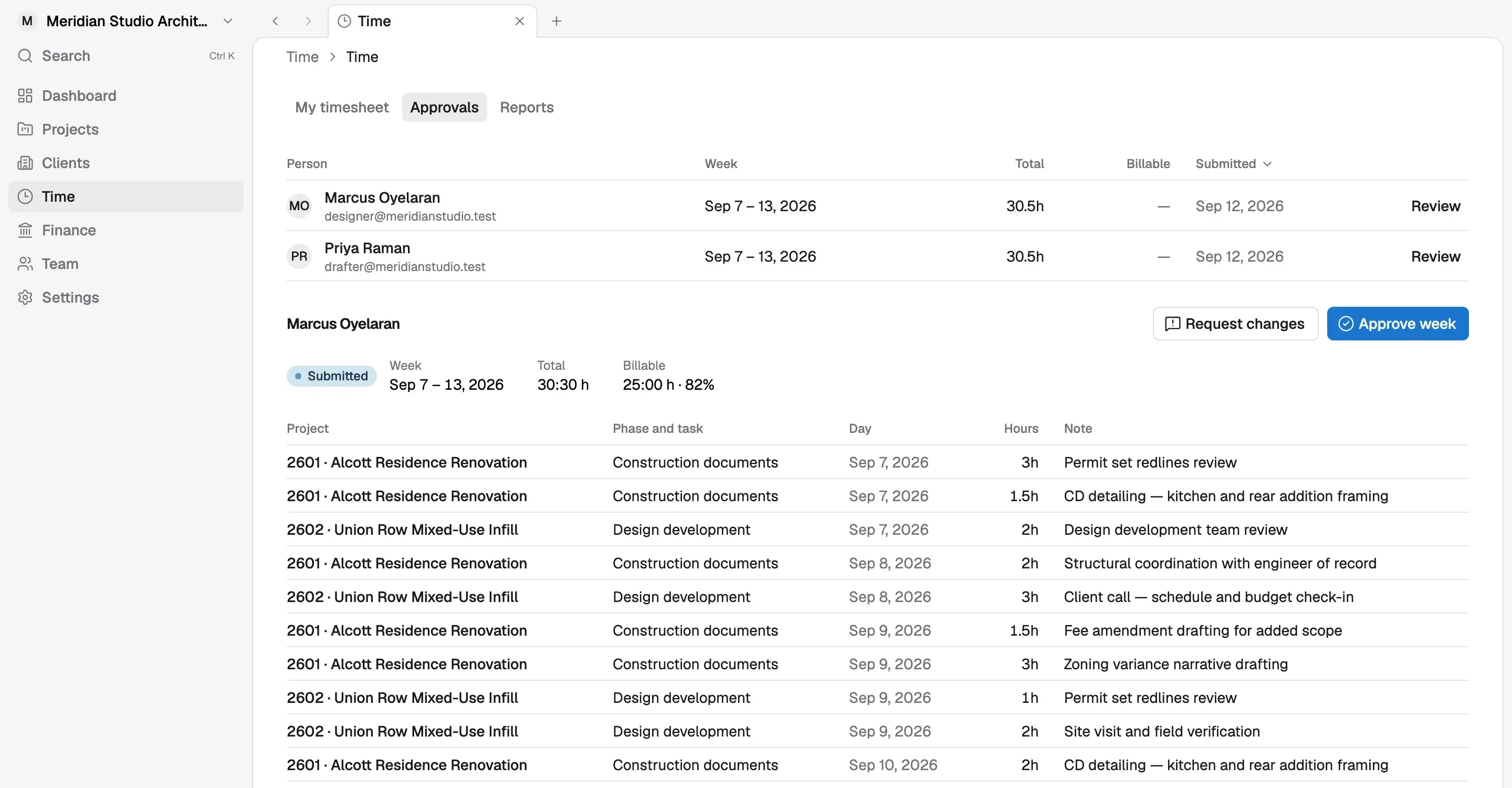
- Go to Time → Approvals.
- The queue has three sections: Ready for review, Sent back and In progress. In progress lists people who haven’t marked their period complete yet, so you know who to remind.
- Open a row in Ready for review with Review.
- Check the calendar. Click a day to see that day’s entries by project and phase, with each comment. Entries marked Non-billable won’t be billed.
- Click Approve October, add a note if you like, and confirm with Approve October.
To ask for a change instead:
- Click Send back.
- Under What should change?, explain what to fix. A note is required.
- Click Send back.
Sending back unlocks the person’s hours for that period and shows them your note on their timesheet. Once they fix it and mark it complete again, it returns to Ready for review. Use the arrows next to the period name to step through someone’s earlier or later periods.
What approval does
Approving locks the hours as final and makes them available for billing. From then on:
- Billable hours can be imported onto the project’s next invoice, at the project’s bill rates. Hours that aren’t approved stay off invoices.
- They are the hours payroll uses. See Run payroll from approved timesheets.
Logged hours show against each phase’s hours budget on the project’s Timeline tab as soon as they’re entered, so you don’t have to wait for approval to see a phase running over.
Next, turn approved time into an invoice. If you haven’t set up the project’s phases, fee components and rates yet, start with Set up a project with phases and fees.
Covered in Korrit
Related
Set up a project with phases and fees
Create a project, lay out its phases, split the fee across them, and set fee components and bill rates so time and invoices land in the right place.
Turn approved time into an invoice
Draft an invoice from a project's fixed fees, approved hours and costs, review the lines, then finalize it, email it and record the payment.
Moving to Korrit from Monograph, Deltek or BQE
What comes across when you switch to Korrit, what to export from your current tool, and how to plan a cutover so billing and timesheets never stop.